
Remote Attendance & Approvals
How to check in from outside the office, and how managers approve it.
Not every workday happens at a desk. When the app can't verify you're on the office network, it asks one short question instead of just refusing the check-in.
Marking a remote attendance
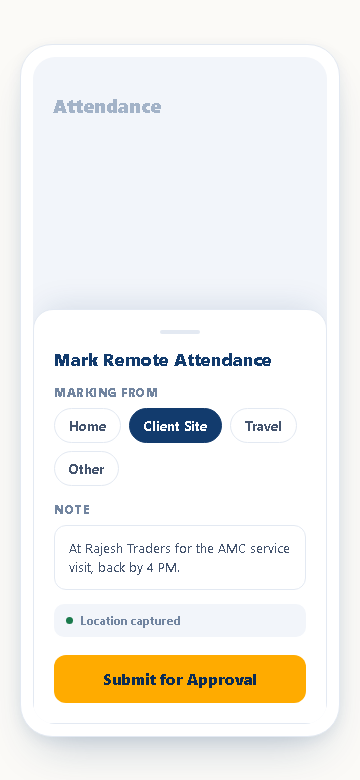
You're asked to pick where you're marking attendance from:
- Home
- Client Site
- Travel
- Other — with a free-text field for anything that doesn't fit the above
Alongside that, you write a short note, and the app captures your current location automatically. All of it — reason, note, and location — goes with the check-in or check-out request for a manager to review.
Tip: A specific note ("At Rajesh Traders for the AMC visit") gets approved faster than a vague one ("outside"). Approvers see the note before anything else.
How approval works
Remote attendance doesn't block your check-in — it's recorded immediately as pending. What's pending is whether it counts as official attendance, not whether the app lets you clock in.
Check-in and check-out are approved separately. It's entirely normal for a check-in to be approved and a check-out from the same day to still be pending — Busiman doesn't assume the two go together.
Each pending request carries:
- Who submitted it, and which department/branch
- The date and which leg (check-in or check-out)
- The note, marking-from reason, and submission time
A request ends up approved, rejected (with a reason visible to the employee), or cancelled if the employee withdraws it.
Where approvals happen
- Mobile — from the Alerts tab. Attendance-approval notifications carry approve/reject actions directly on the card — no need to open a separate screen.
- Desktop — from the attendance dashboard, visible to Managers, HR, and Admins, which lists every pending request across the branches they oversee.
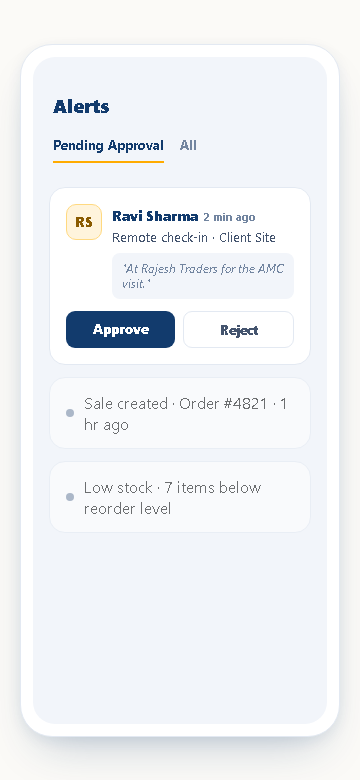
Note: Only a branch's assigned manager, or HR/Admin, can approve attendance for that branch. Regular employees never see other people's pending requests.
Next
For a check-in method that skips this entirely when you're physically at the office, see Gate Devices & Office Verification.